
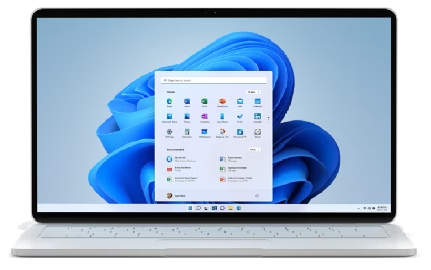

Top Key Proven Tips to Improve Windows 11 Boot Performance
A slow boot process can be frustrating, especially when you’re trying to start your day or jump into a task quickly. Fortunately, Windows 11 offers several ways to speed up system startup. Whether you’re looking for simple tweaks or considering a hardware upgrade, here are six effective strategies to improve boot performance.
⚡ 1. Enable Fast Startup
Fast Startup is a built-in Windows feature that helps your PC boot faster by using a hybrid shutdown process. Here’s how to enable it:
- Open Control Panel > Power Options > Choose what the power buttons do
- Click Change settings that are currently unavailable
- Under Shutdown settings, check Turn on fast startup
By loading essential system files from a hibernation file, Fast Startup can significantly reduce boot time.
🧹 2. Clean Up Startup Programs
Too many apps launching at startup can slow down your boot process. To manage them:
- Press Ctrl + Shift + Esc to open Task Manager
- Navigate to the Startup tab
- Right-click and disable any apps you don’t need to run at startup
Fewer startup apps = faster boot time.
🔄 3. Keep Drivers and Windows Up to Date
Outdated drivers or system files can lead to boot delays and performance issues. To stay current:
- Go to Settings > Windows Update
- Install the latest updates for Windows and your device drivers
Regular updates help ensure compatibility and smooth performance.
🧼 4. Remove Bloatware and Junk Files
Unnecessary applications and temporary files can drag down your system’s efficiency. Clean them out with these steps:
- Uninstall unused apps: Settings > Apps > Installed apps
- Run Disk Cleanup or enable Storage Sense to clear temporary files
A cleaner system boots faster and runs more efficiently.
🚀 5. Upgrade Your Hardware (If Needed)
Sometimes, software tweaks aren’t enough. Consider:
- Switching to an SSD if you’re still using a traditional HDD — this alone can cut boot time dramatically
- Adding more RAM to help your system load resources more quickly
These upgrades provide long-term performance benefits beyond just boot speed.
🧠 6. Use Performance Mode
Optimize your power settings for better performance:
- Go to Settings > System > Power & battery > Power mode
- Select Best performance
This mode prioritizes speed, making it ideal for desktop systems or laptops plugged into power.
Need Help Getting Started?
If you’d like a personalized checklist or assistance with any of these steps, feel free to reach out. Optimizing your system doesn’t have to be complicated — small changes can make a big difference in your day-to-day computing experience.
Install and configure Windows Server 2025
Windows 11 Performance Tunning