

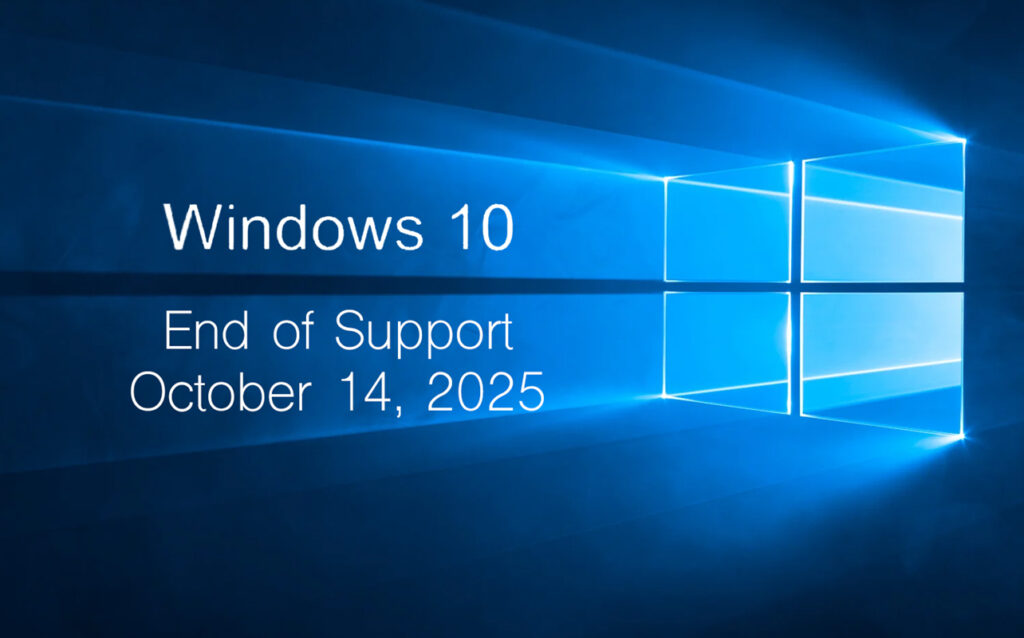
⏳ The End of an Era for Windows 10
Windows 10 Support Ends October 14, 2025
After a decade of powering millions of devices around the world, Windows 10 reaches its official end of support tomorrow, October 14, 2025.
Microsoft will no longer provide free security updates, bug fixes, or technical support for any edition of Windows 10. While the operating system will continue to function, users are now entering risky territory if they choose to stay on it.
But what does this really mean for you—and what should you do next?
Let’s break it down.
🛑 What “End of Support” Actually Means
When Microsoft ends support for an operating system, it no longer:
- Releases security patches or critical bug fixes.
- Provides technical support (even for paid users).
- Updates system features or compatibility tools.
As of October 15, 2025, your Windows 10 PC will become more vulnerable to malware, ransomware, and other security threats. This applies to all users—consumers, small businesses, and enterprises alike.
Important: Microsoft is offering an Extended Security Updates (ESU) program, but it’s paid and intended primarily for enterprise environments. For most users, the safest path forward is to upgrade.
⚠️ Why Staying on Windows 10 Is Risky
Even if your computer seems to be running fine, here’s what’s at stake:
1. Security Threats Will Increase
Unpatched vulnerabilities will become low-hanging fruit for cybercriminals. Antivirus software can only do so much when the OS itself is outdated.
2. Software Compatibility Will Degrade
Over time, popular apps like Google Chrome, Microsoft Office, Adobe tools, and more will stop releasing updates for Windows 10.
3. Compliance Issues for Businesses
If you manage sensitive data (especially in finance, healthcare, or education), using unsupported systems may violate data protection regulations.
✅ What Should You Do Now?
Here’s a clear action plan to help you navigate the transition:
🔍 1. Check If Your PC Can Run Windows 11
Microsoft offers a free PC Health Check Tool to determine if your device is compatible with Windows 11.
Requirements include:
- TPM 2.0
- Secure Boot
- Compatible processor
- 4GB+ RAM and 64GB+ storage
💾 2. Back Up Your Data Immediately
Before making any changes, back up important files to:
- An external hard drive
- OneDrive, Google Drive, or other cloud storage
- A secure NAS or backup server
💻 3. Upgrade Options
You have several paths forward:
🔄 Upgrade to Windows 11 (Recommended)
- Free if your PC is eligible
- Maintains your files and settings
- Continued support through at least 2031
🕒 Enroll in Extended Security Updates (For Businesses)
- Paid service extending security updates to October 2026
- Available through volume licensing or Cloud-based deployment
🧰 Consider Alternative OS (If Hardware Is Incompatible)
- Linux distributions (e.g., Ubuntu, Linux Mint) offer modern, free OS alternatives for older PCs
- Great for basic web browsing, email, and productivity tasks
🆕 Buy a New PC
- Ideal if your current hardware is outdated or unsupported
- Most new devices come preloaded with Windows 11
🧭 What If You Do Nothing?
Your PC won’t shut down—but here’s what you can expect:
- Gradual loss of app and hardware compatibility
- Increased exposure to viruses and cyberattacks
- Degraded system performance and reliability
- Ineligibility for technical support from Microsoft and most vendors
📉 In short: Staying on Windows 10 is a temporary, increasingly risky option.
📝 Final Thoughts
Windows 10 was a trusted and reliable OS for over a decade, but all good things must come to an end. Microsoft has made it clear: now is the time to move on.
Whether you’re a casual home user or managing a network of devices, taking action today will protect your data, your productivity, and your peace of mind.
🧩 Need Help?
- Want a step-by-step upgrade guide?
- Not sure if your PC can run Windows 11?
- Looking for the best budget laptops to replace older machines?
👉 Drop your questions in the comments or contact our support team for personalized advice.
🔗 You can refere these Resources also
- Microsoft: Windows 10 End of Support FAQ
- How to Upgrade to Windows 11
- Windows 11 Minimum System Requirements
🖥️ Stay secure. Stay updated. The future starts now.


